

Using Promo Codes
Apply a promo code when you subscribe to a plan or switch plans
A promo code takes a discount off your subscription when you subscribe, upgrade or switch plans. Only organization admins who manage billing can apply one.
Apply a promo code
Choose a plan
Open Settings → Usage & Billing, click Change plan and choose a plan. The checkout page opens with an Order summary.
Enter the code
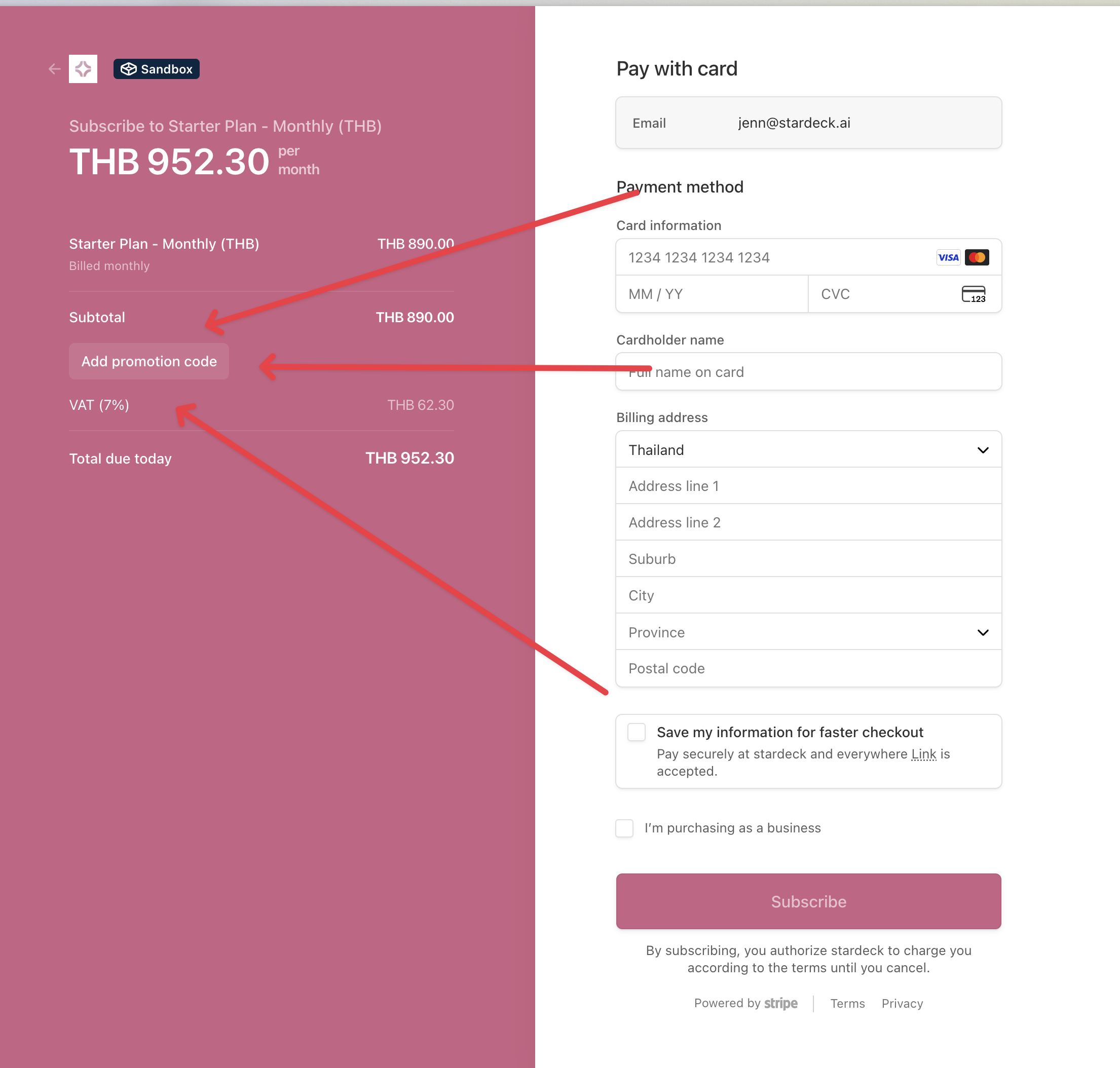
Type the code in the Promo code field under the order summary and click Apply. The order summary updates with the discount. If the code can't be applied, the reason shows under the field and the total stays as it was.
Confirm
Click Subscribe, Confirm change or Start free trial to finish.
If checkout takes you on to a Stripe payment page, you can also enter a promo code there.
The "secret code" field is something else
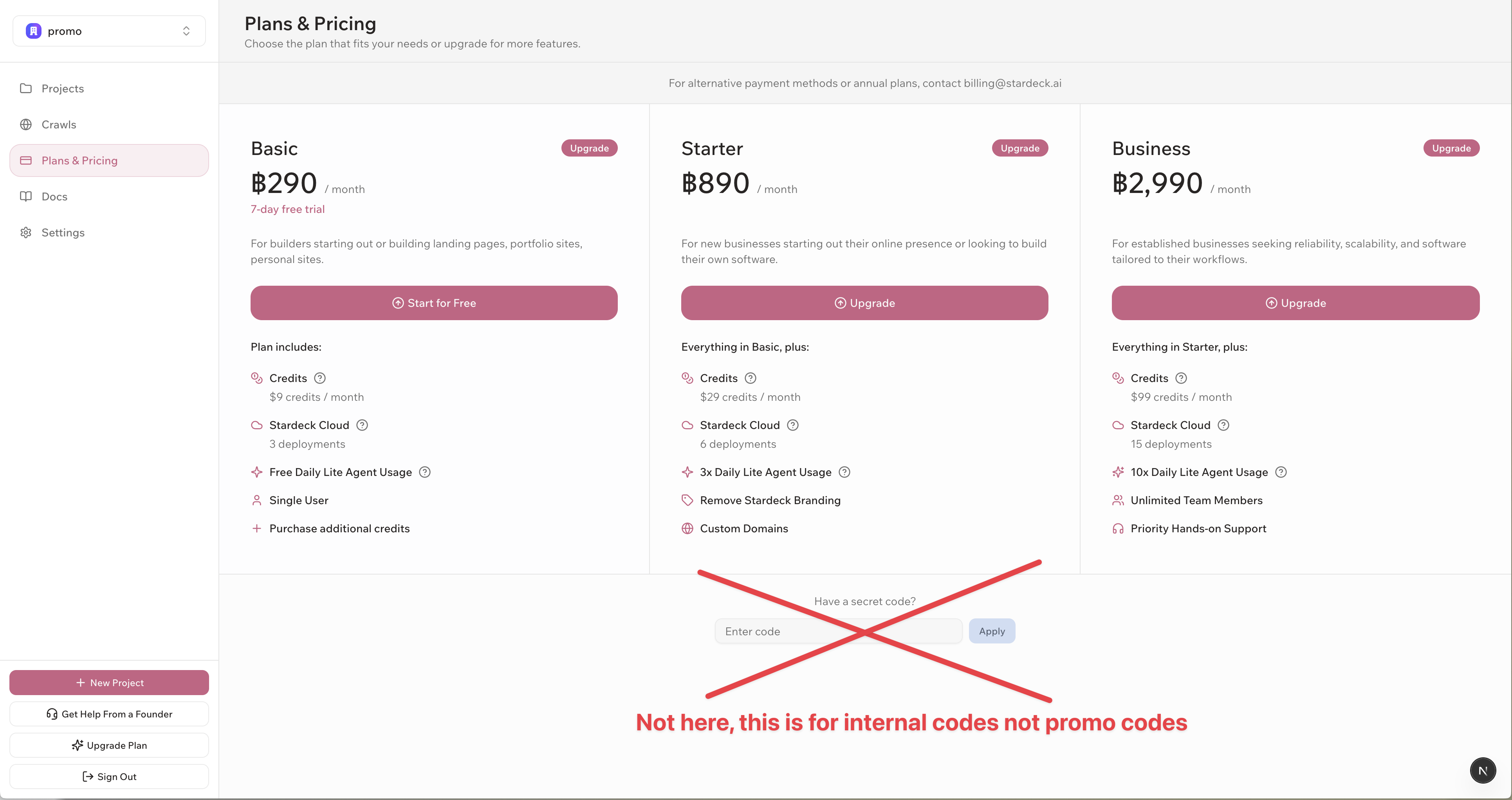
The Have a secret code? field on the plan selection page is not for promo codes. A promo code entered there doesn't work.
Need help?
- Check the code's details with whoever gave it to you.
- Email billing@stardeck.ai.
See Plan Allowances for what each plan includes.